Before you start
On first launch, choose the interface language and the workspace where your notes will live. nohmitaina keeps your notes as ordinary files in that workspace.
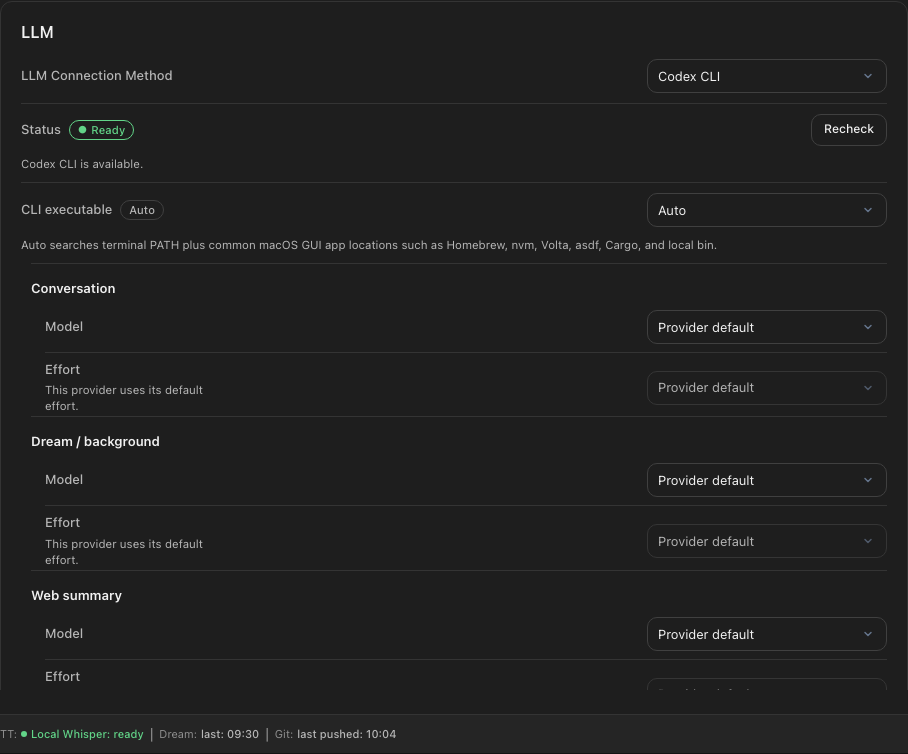
Choose Claude Code or Codex CLI. The selected CLI must already be installed and signed in.
Add a note or import a file
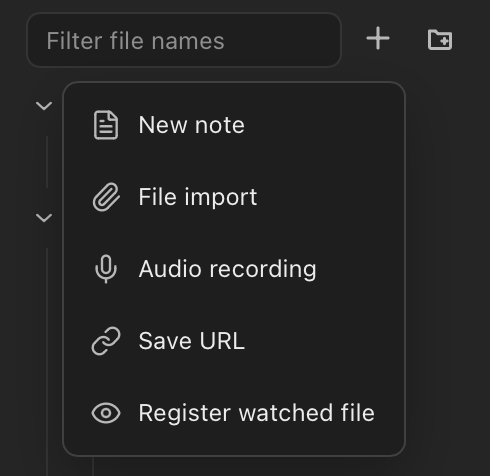
Use the add button beside the file tree to create a note, import a file, or import a folder. Markdown, plain-text, and JSONL files are supported.
- Create a note and write several connected paragraphs, or import a file with enough context to understand.
- Choose
Extractfor the note so it can contribute to noh. - Save the note.
Extract, Memo, and Use default
Extract means Extract concepts and tasks. Memo means Save only; notes remain available to edit and search. New workspaces use Memo as the default. To create your first noh, choose Extract for that note, or change Default note handling in Settings to Extract and keep the note on Use default.
The note editor, file import, manually imported session logs, audio transcription, and URL saving offer Use default, Extract (Extract concepts and tasks), and Memo (Save only). Each new input starts on Use default. Reimporting without changing the choice keeps the existing note's choice; explicitly choosing Extract or Memo replaces it. To return an existing note to inheritance, choose Use default in its editor.
An explicit note choice takes priority over its nearest folder setting, followed by the Workspace default. Right-click a folder, open Note handling, and choose Use default, Extract, or Memo for its inheriting notes. Use default removes that folder's override. A folder setting takes effect on the next save, idle extraction, or Dream; selecting it does not start processing. The main note control shows the effective handling and whether it comes from the folder, Workspace, or an explicit choice. Information beside the control shows the full folder path.
The former Normal label is now Extract. Memo still means save only. Existing notes that inherit follow the new Workspace default. Explicit choices and choices preserved from older formats remain, as do already created concepts and tasks. The update adds policy information to frontmatter, so note files and their Git diffs can change without changing the body.
Settings shows the current default. To restore extraction for inheriting notes, choose Extract in Default note handling and save. Changing the setting alone does not start extraction. The next save, idle extraction, or Dream processes eligible unprocessed content, including content paused while using Memo. A Dream processing this backlog may take time and use your plan allowance or incur charges. Update synchronized devices too, and use the updated app and CLI together; do not use an older version on the same Workspace at the same time.
Wait for processing
After a save, the footer reports pipeline activity. Extraction runs in the background, so you can continue writing while the note is processed.

A short or fragmentary note may not produce a noh. Add enough context for the model to identify an idea, claim, question, or relationship, then save again.
Open your first noh
- Open
nohfrom the main navigation. - Choose
Browseand select a result. - Read the definition, evidence, relationships, history, tags, surprise, and activation shown in the detail view.
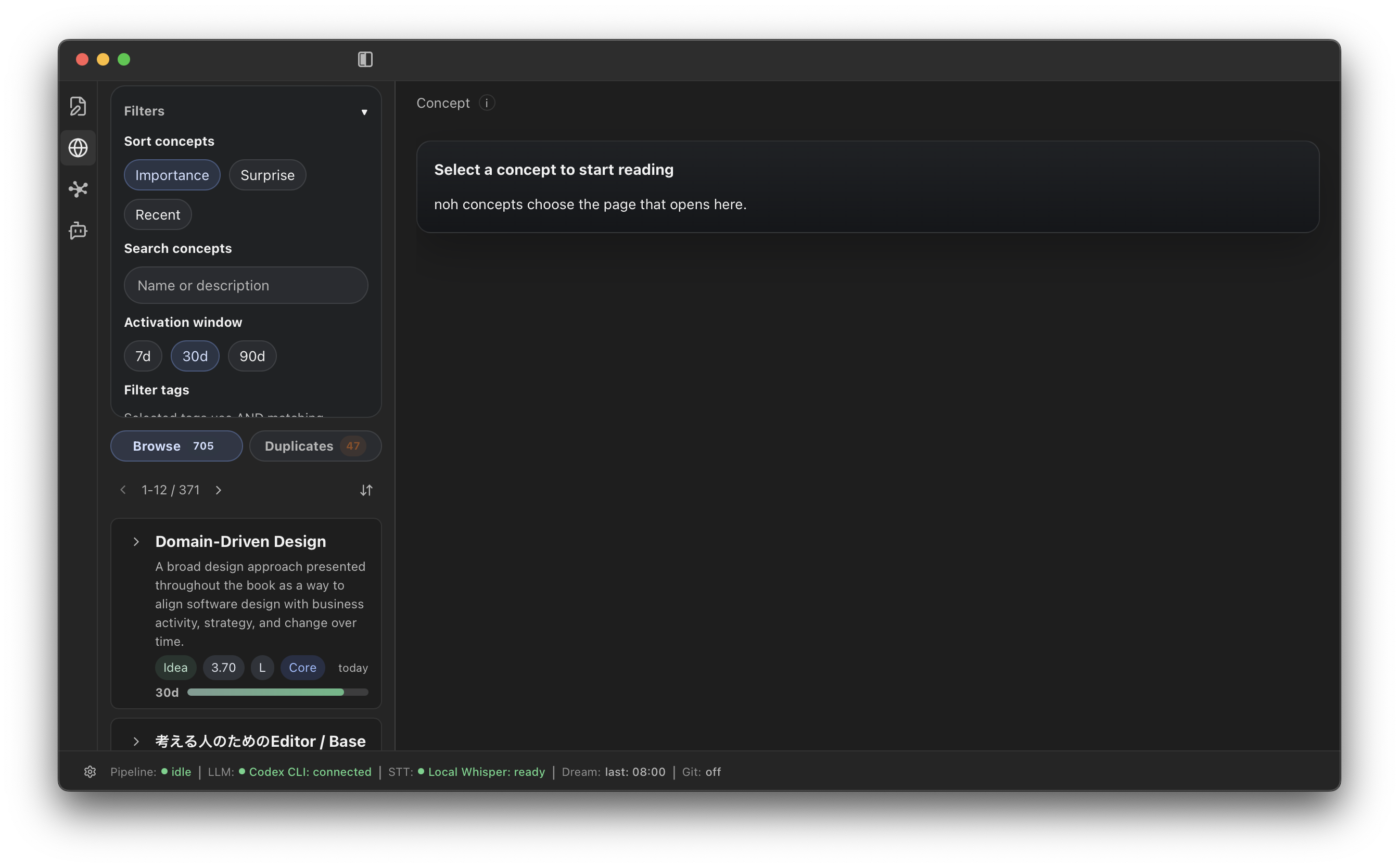
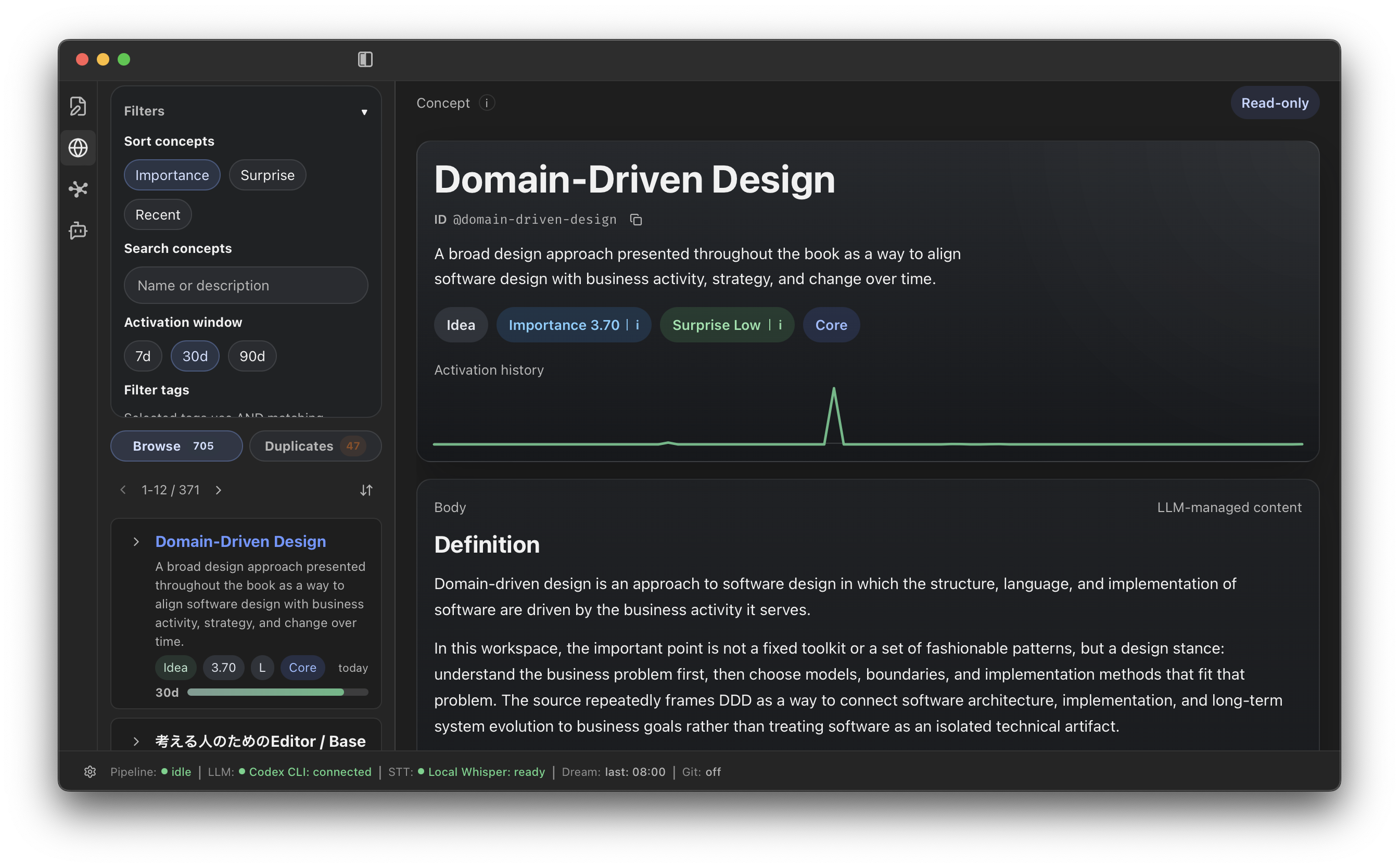
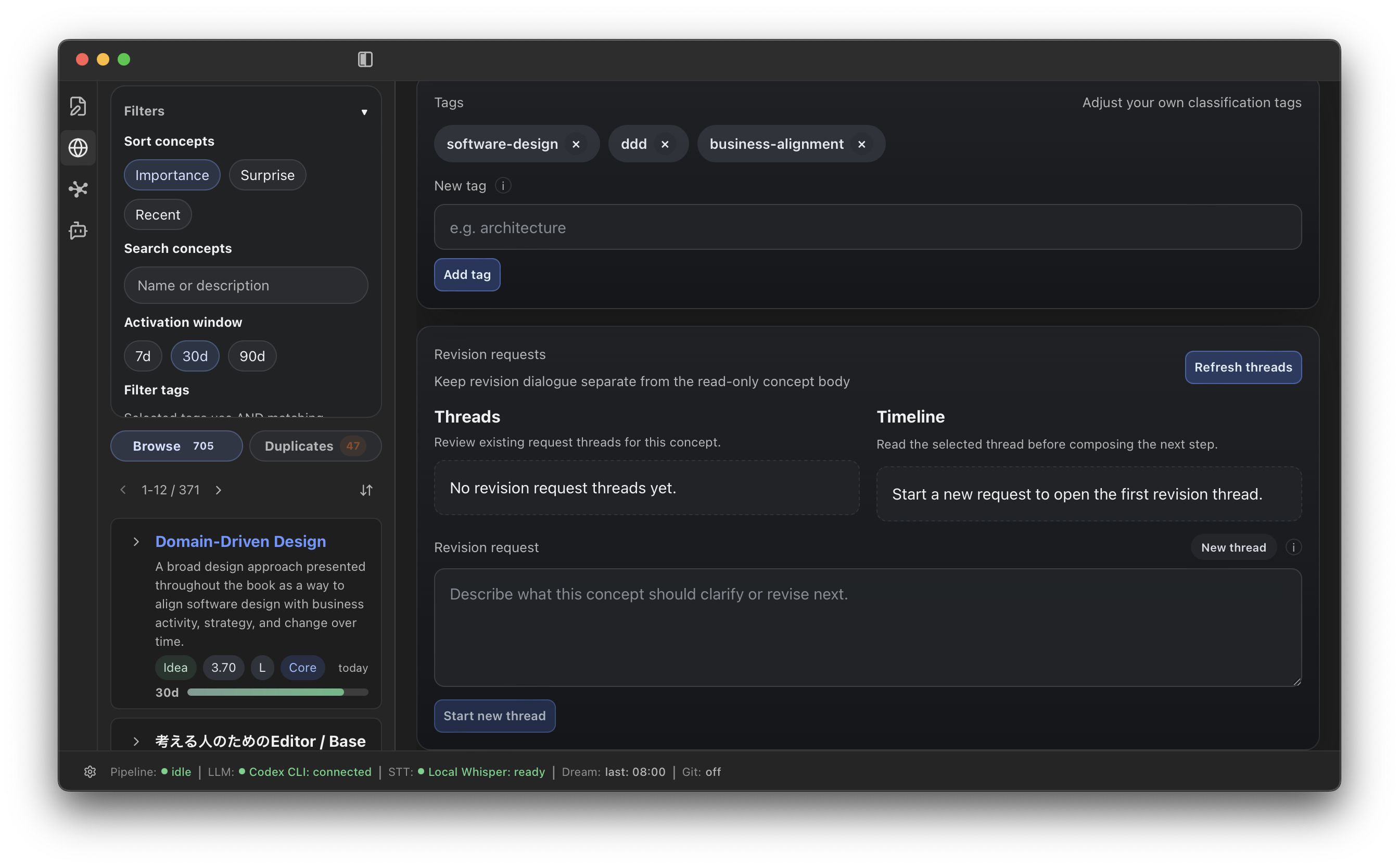
The detail view is read-only. To correct or refine a noh, use Revision Request so the next processing cycle can reconsider it with your guidance.
If nothing appears
- Confirm that the provider is
Readyin Settings. - Confirm that the note’s effective handling is
Extract. - Wait until the processing indicator becomes idle.
- Add more context to very short material and save it again.
- Check that the current workspace contains the note you edited.