Notes and editor
The file tree creates folders and notes, searches and filters entries, and supports rename, move, duplicate, and delete. Extract and Memo control whether a note enters analysis. Use default inherits the nearest folder setting, then the Workspace default.
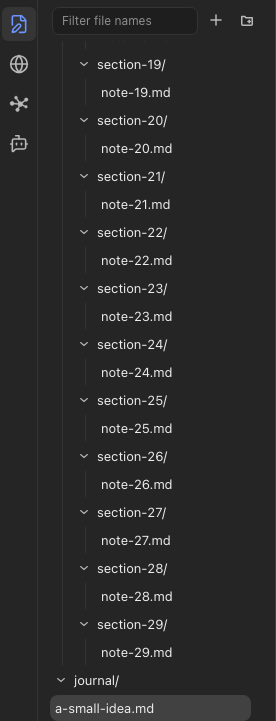
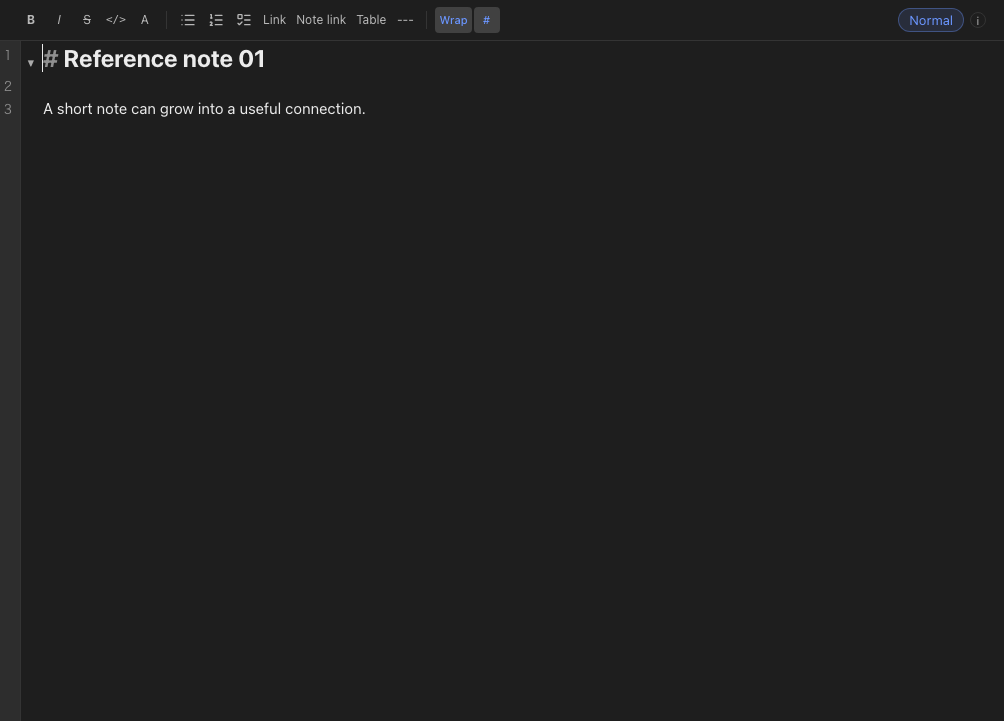
The Markdown editor saves changes, supports multiple tabs and per-tab history, and includes find and replace, formatting commands, internal links, text selection, and macros.
Use ![[Project outline]] to load another note into the current note and edit it in place. Link cards provide a readable preview of supported links.
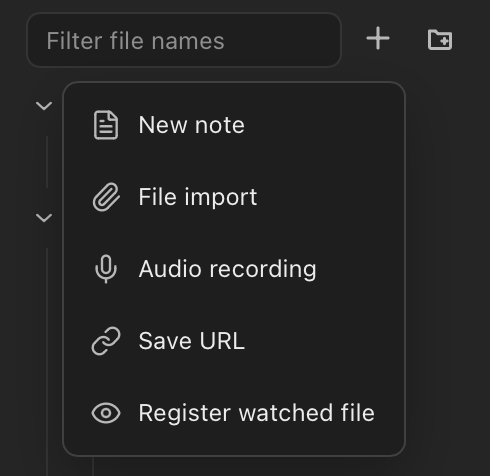
File and folder import
File and manual session-log imports start on Use default. See note handling for explicit Extract and Memo choices.
Import Markdown, plain-text, or JSONL files. When you import a folder, its nested folders remain nested so the collection keeps the structure users already recognize.
URLs and watched inputs
URL saving starts on Use default and follows the same note handling.
URL capture saves a summary or raw Markdown. It supports regular web pages. For posts from x.com or twitter.com, it imports only the portion of the post that the source makes available, not necessarily the full text.
Use a watched file or folder when content outside the current workspace changes over time and should be brought into nohmitaina again. Once registered, Dream checks the target on its schedule and imports changes it can detect, so a maintained external document does not need to be imported manually after every edit.
Browse and understand noh
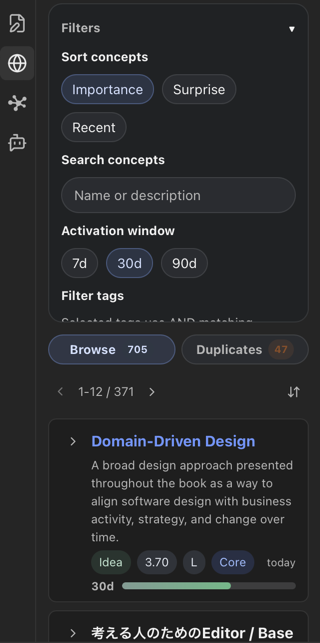
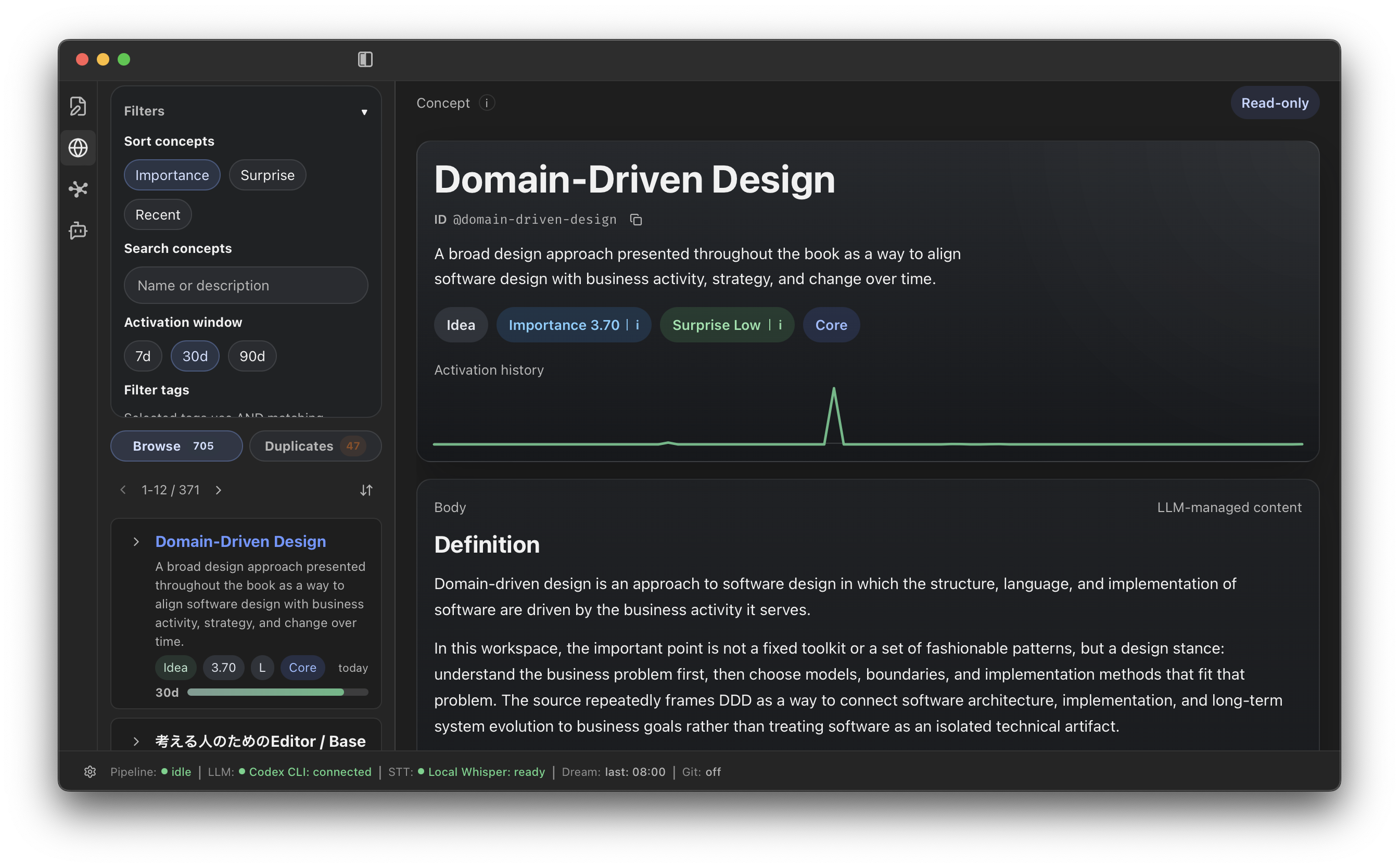
Browse searches, filters, and sorts noh. Duplicates helps inspect concepts that may overlap.
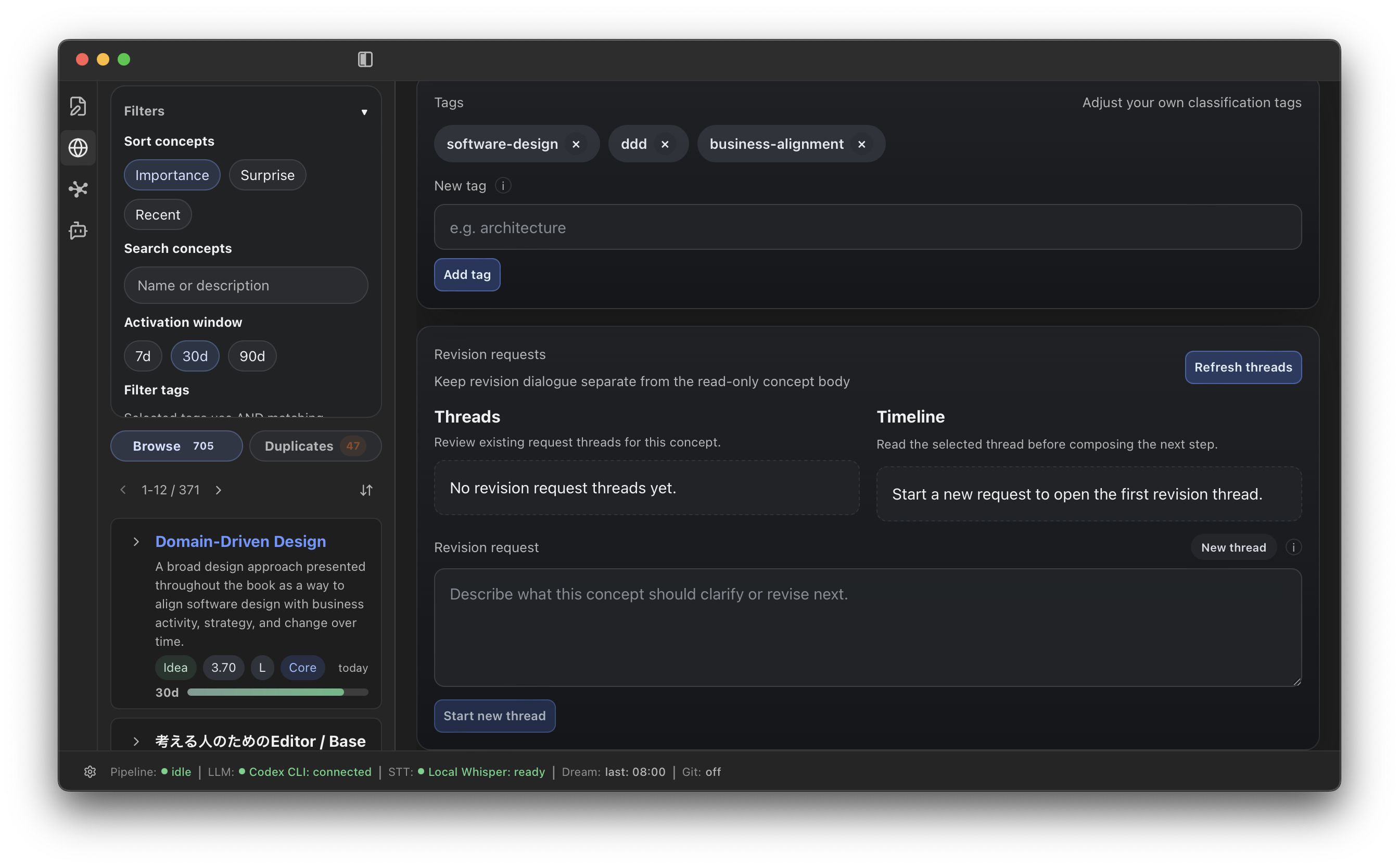
A detail includes its definition, evidence, relationships, history, tags, surprise, and activation for 7, 30, and 90 days with a small activity chart. Use Revision Request to propose a correction.
Recall and Resurface
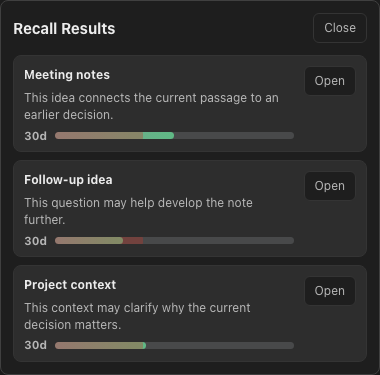
Select text or use the current block, open the editor context menu, and choose Recall here. nohmitaina returns three to five related candidates with activation context.
Core and Dialogue
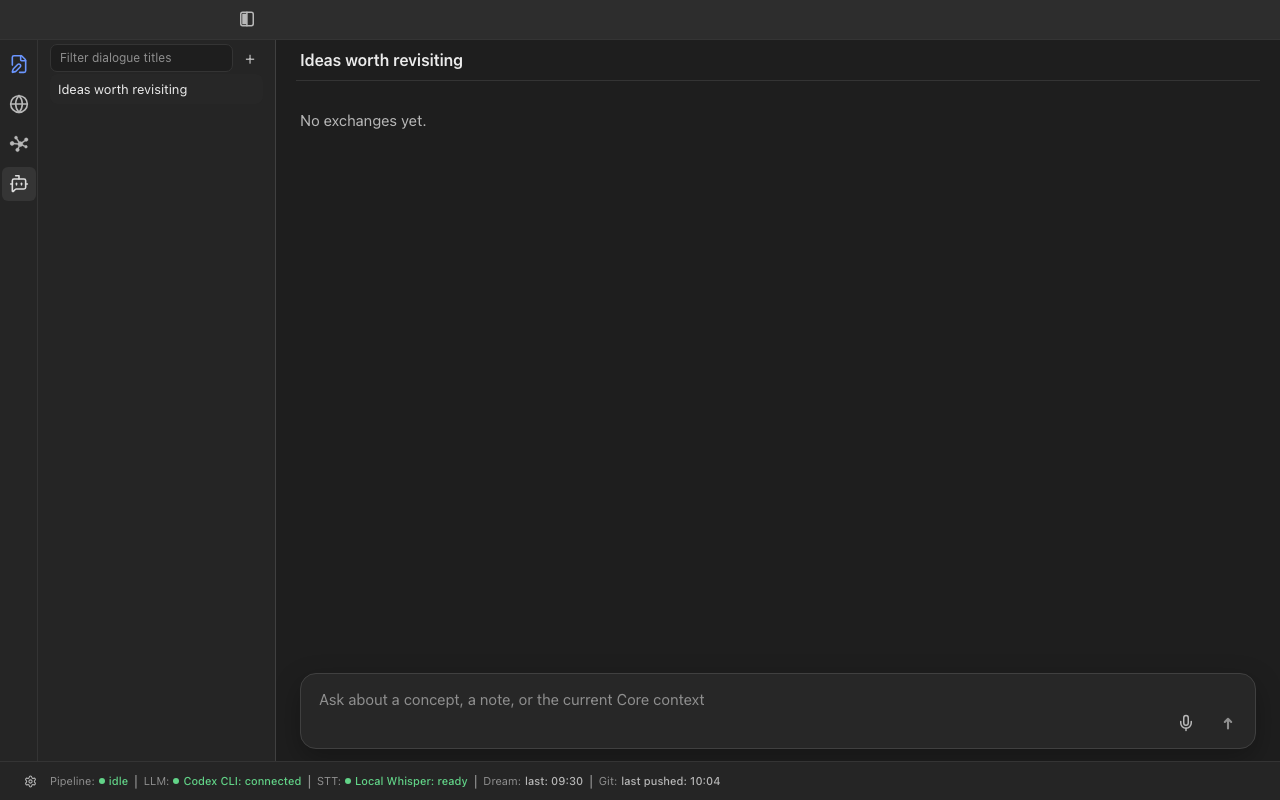
Core is a set of frequently used, important Concepts that an LLM agent loads naturally when it reads nohmitaina’s memory. Dialogue sessions let you examine that shared memory through a focused exchange.
Multiple workspaces
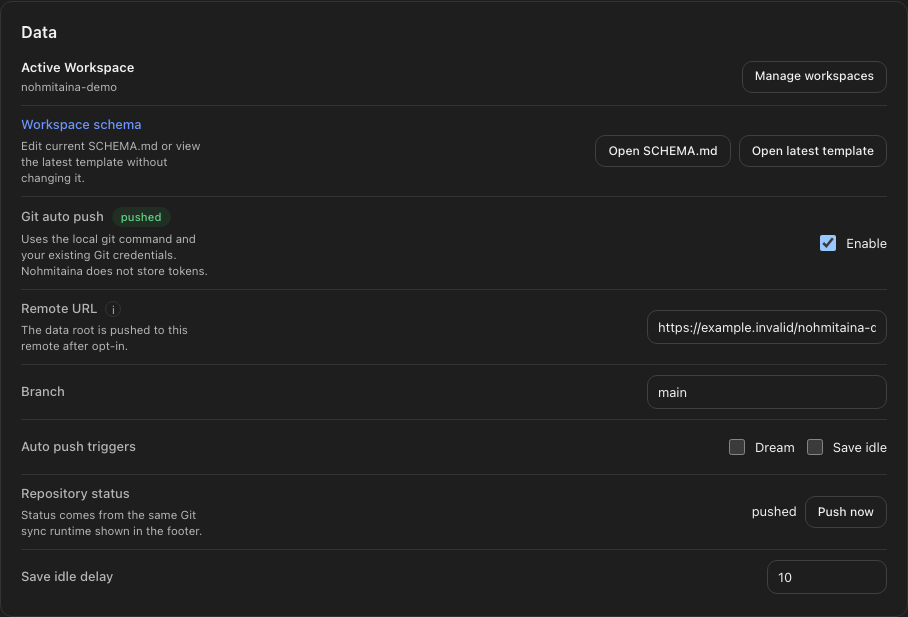
Create separate workspaces for distinct bodies of notes and switch between them. Each workspace has its own files and app-managed data.
noh CLI
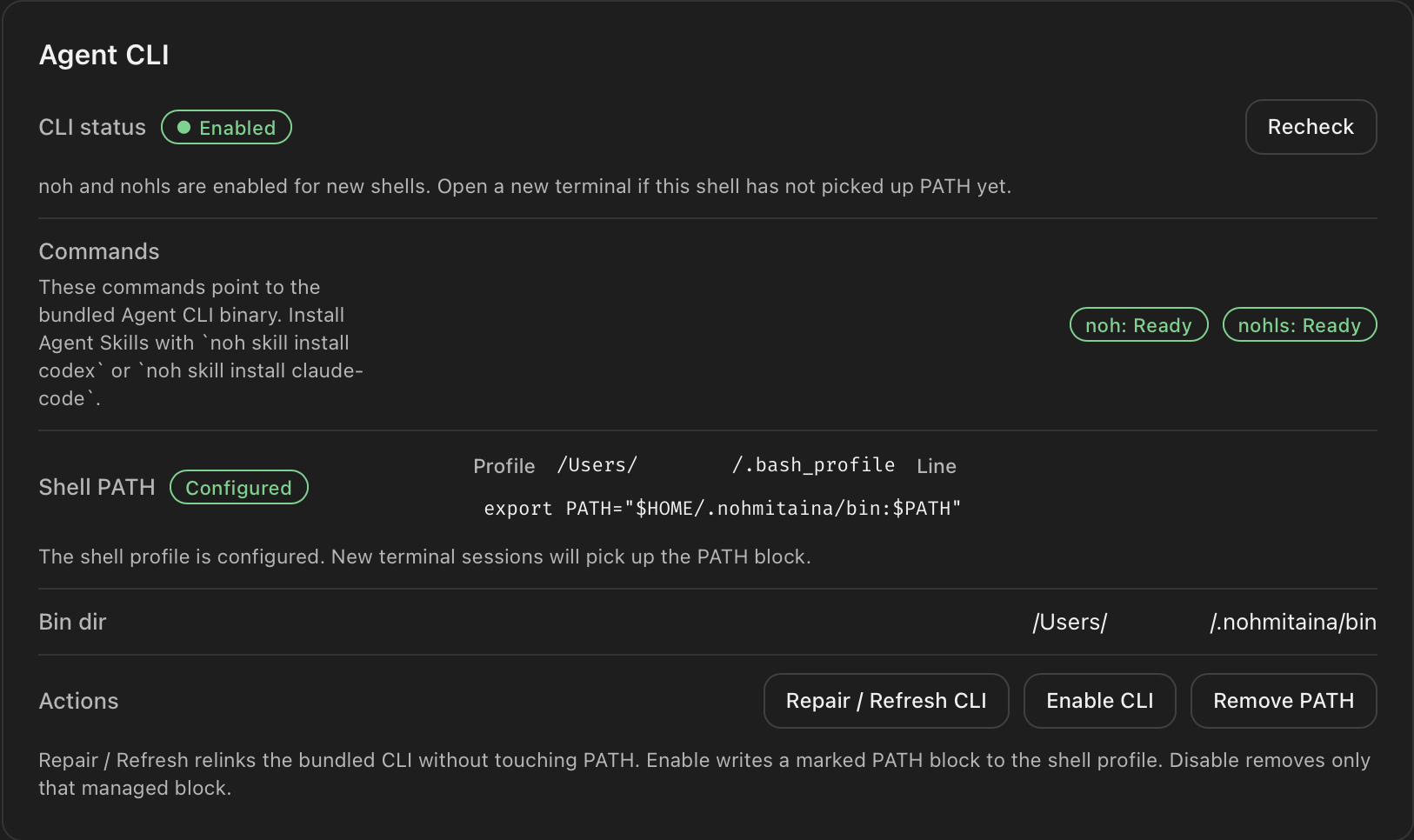
The noh command lets LLM agents read and write the same memory as a human without requiring the desktop app to be open. Information learned by either can be stored in one place and used in the other’s next task.
noh ls [--type concept,note,web-clip,agent-note] [--json]
noh cat <concept-id|note-id|agent-note:key> [--json]
noh link <concept-id> [--depth N] [--tree] [--json]
noh tree <concept-id> [--depth N]
noh score <concept-id> [--json]
noh core [--budget TOKENS] [--json]
noh recall <text> [--json]
noh put --desc TEXT [--key KEY] [--refs concept-a,concept-b] [--file PATH]
noh put --desc TEXT --refs noh:user
noh rm --key KEY
noh skill install codex [--scope user] [--replace]
noh skill install claude-code [--scope user] [--replace]
Notes saved through noh CLI can be read again with noh ls and noh cat. noh:user is the reserved top-level Concept for durable user information. noh rm removes only a keyed note saved through noh CLI; it does not delete extracted noh.
Keyboard shortcuts
Use Command on macOS and Control on Windows for shared shortcuts. 1, 2, 3, 4, and 9 switch main sections. S saves and F finds.
- Editor history: Command or Control with
[and]. - Next or previous tab: Command or Control with Shift and
[or]. Windows also supports Control with Tab. - Record a macro: Command or Control with Alt and
M. - Replay a macro: Command or Control with Shift and
M.
Data and network access
Notes remain in the workspace you choose. nohmitaina stores its managed indexes and records below that workspace’s nohmitaina/ directory.
Relevant note or noh content can be sent to the external language-model provider you configure. URL capture, Git synchronization, and update checks also use the network when invoked.