Language and language model
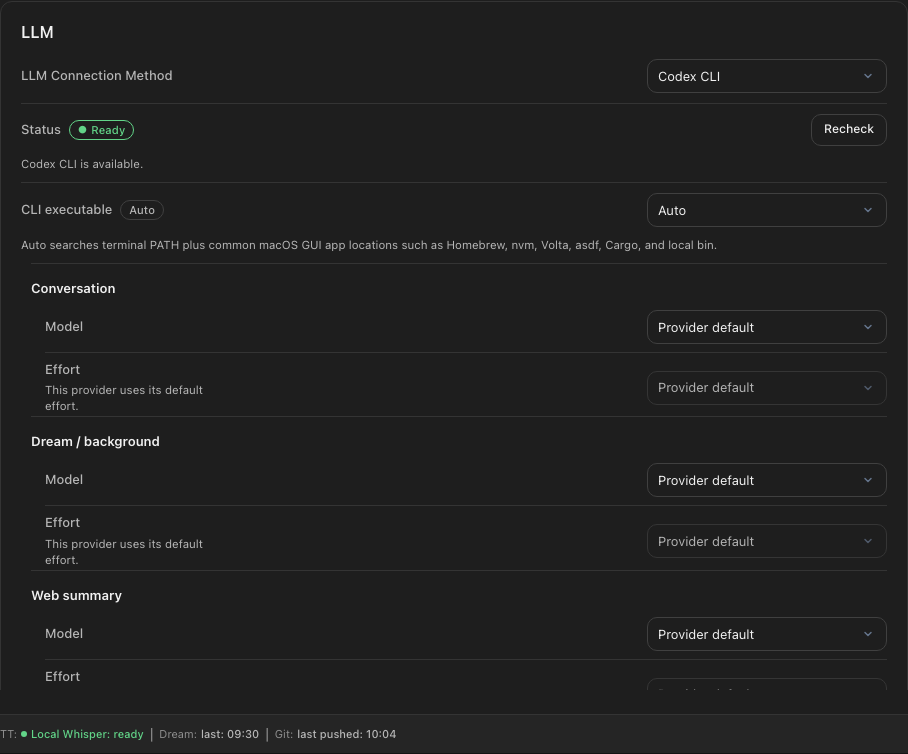
Set the interface language, then choose Claude Code or Codex CLI. Settings shows connection status and the model options available for that provider. Existing installations that already use Claude API or OpenAI API keep that saved setting, but these methods are not offered for new setup.
Reasoning effort affects supported OpenAI and Codex models. Higher effort may take longer and use more provider capacity.
Transcription
The OpenAI Whisper API sends audio to OpenAI’s transcription service. Local Whisper runs on macOS and Windows, stores a compatible model on the device, and transcribes without sending audio to an external transcription API. You can also set the spoken language used for recognition.

Core, scoring, and Dream
Core is a set of frequently used, important Concepts that an LLM agent loads naturally when it reads nohmitaina’s memory. Set its token budget here, and use scoring options to adjust how importance is calculated.

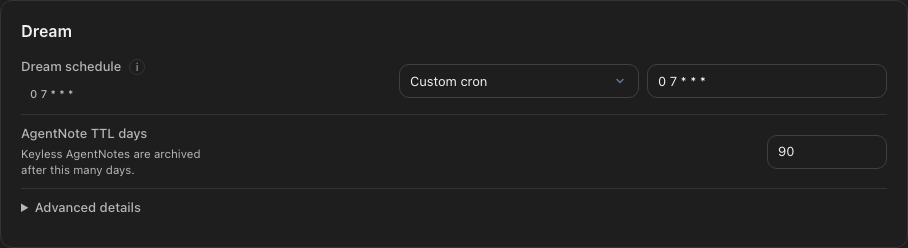
Dream distills Concepts from notes and other sources to create noh. It keeps noh clean through memory reconstruction: organizing duplicate candidates, recalculating scores, and rebuilding the relationships that make the memory useful. Set the schedule for a time when the computer and nohmitaina are usually running.
Workspaces and schema
For the Workspace default and folder inheritance, see note handling.
Use workspace management to add workspaces, switch between them, or remove them from the list. Removing a workspace from the list does not delete its note files.
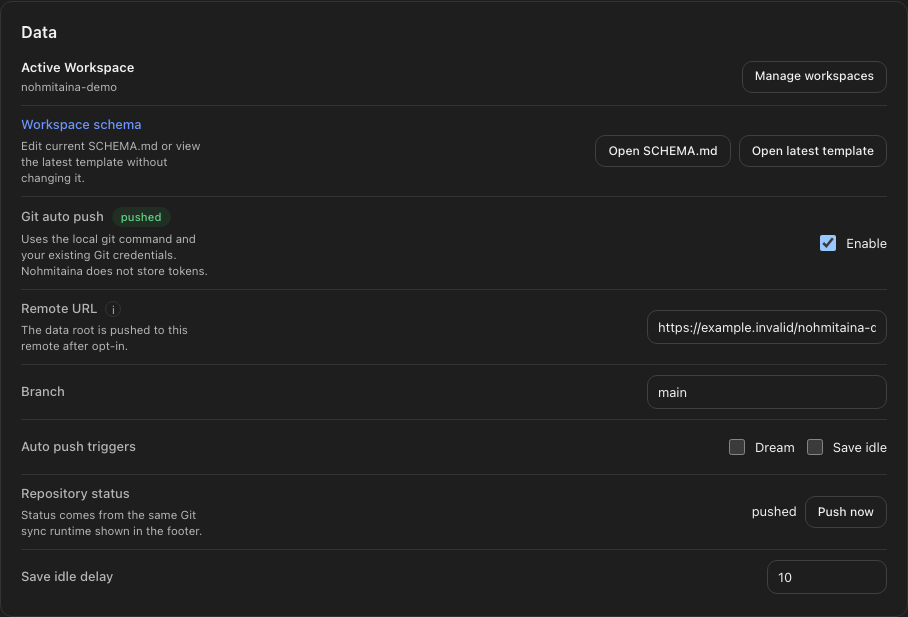
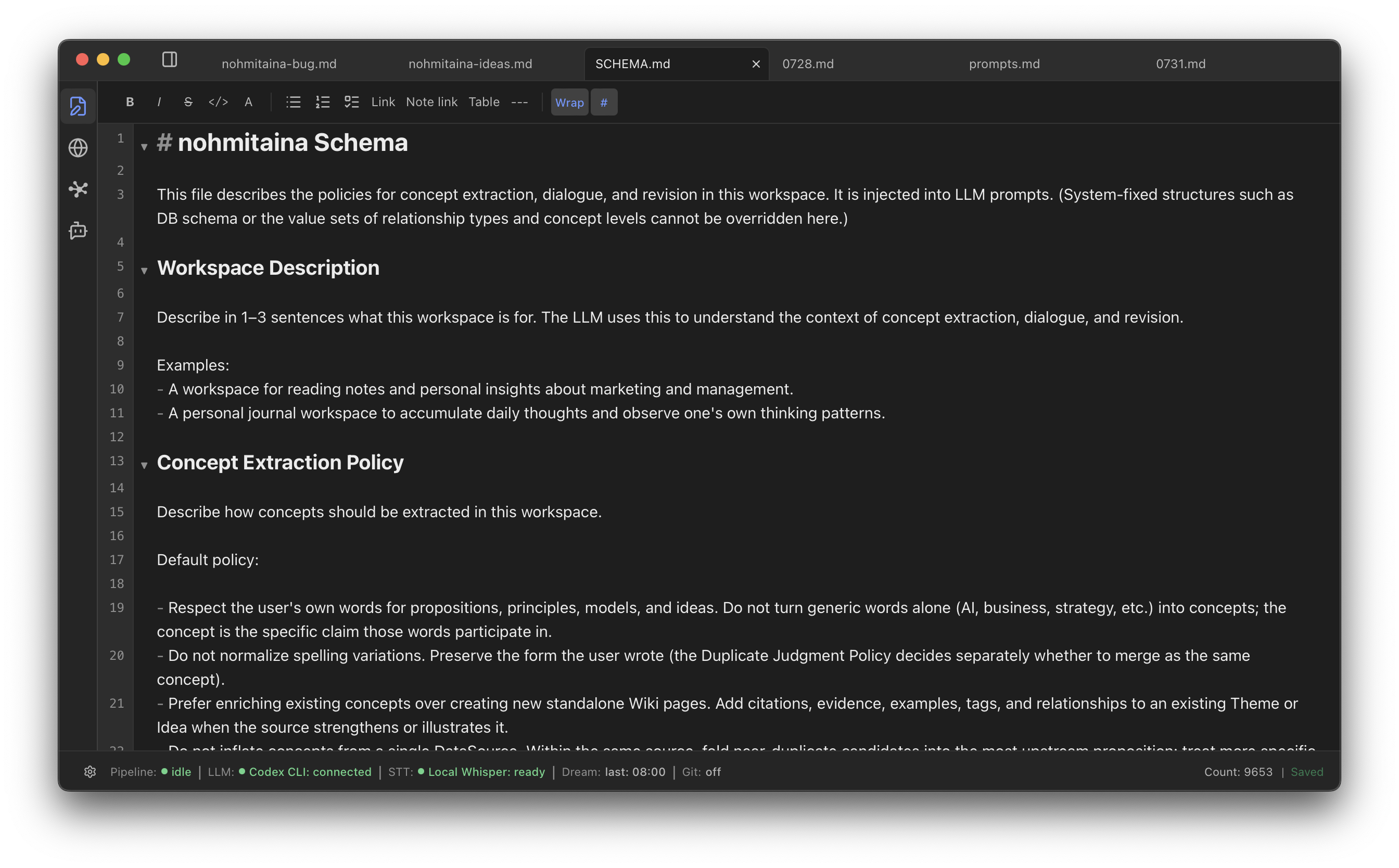
SCHEMA.md is the user-defined instruction file for extraction. It tells nohmitaina what to take from notes, how each result should be shaped, and how noh should be organized. The default schema contains Definition, Context, Evidence, and History. You can add fields of your own, such as Decisions or Open Questions, and describe exactly what belongs in each field. This is how a workspace can extract the information its user wants in the form the user wants.
Git sync
Git sync is optional. When enabled for a workspace, nohmitaina can commit and synchronize changes through that workspace’s repository.
noh CLI
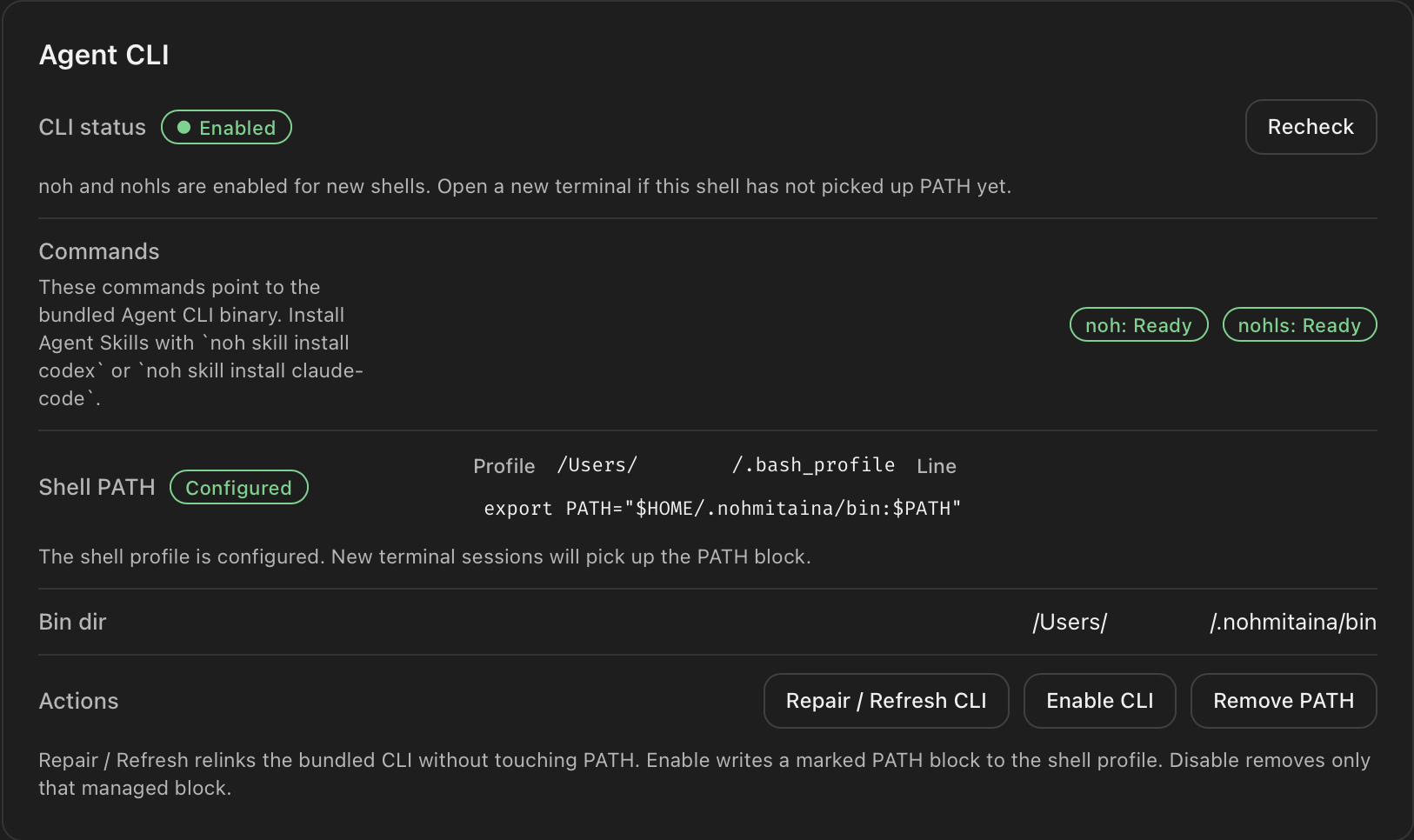
Choose Enable CLI to install the bundled CLI program and configure PATH automatically for Bash and Zsh. Open a new terminal afterward. For another shell, add the bin directory shown in Settings to that shell’s PATH manually.
The noh CLI lets LLM agents read and write the same memory as a human. Information learned by either can be stored in one place and used in the other’s next task. On macOS, the installer can add the nohmitaina bin directory to your shell profile. On Windows, it adds %USERPROFILE%\.nohmitaina\bin to the user Path.
Help, version, and updates
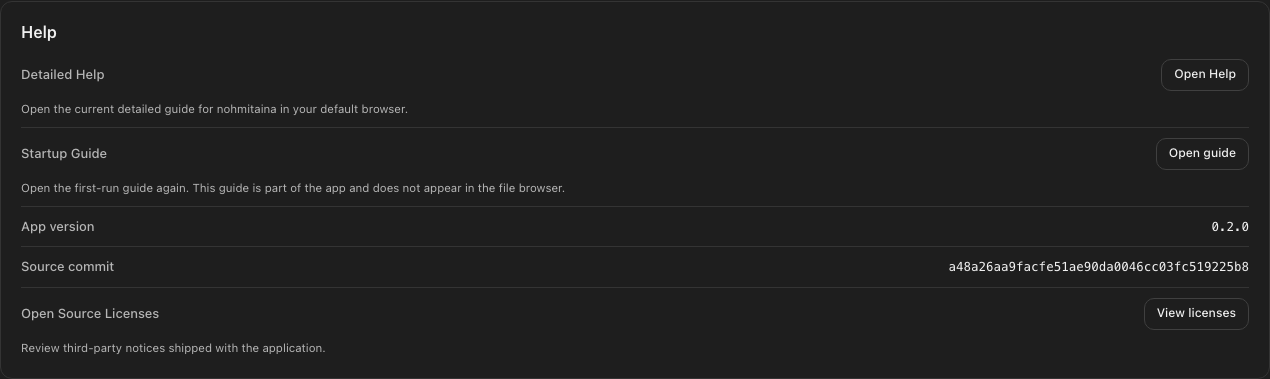
The Help area shows the running app version and source commit, opens this public Help, and links to licenses. Update controls check for and install signed releases.